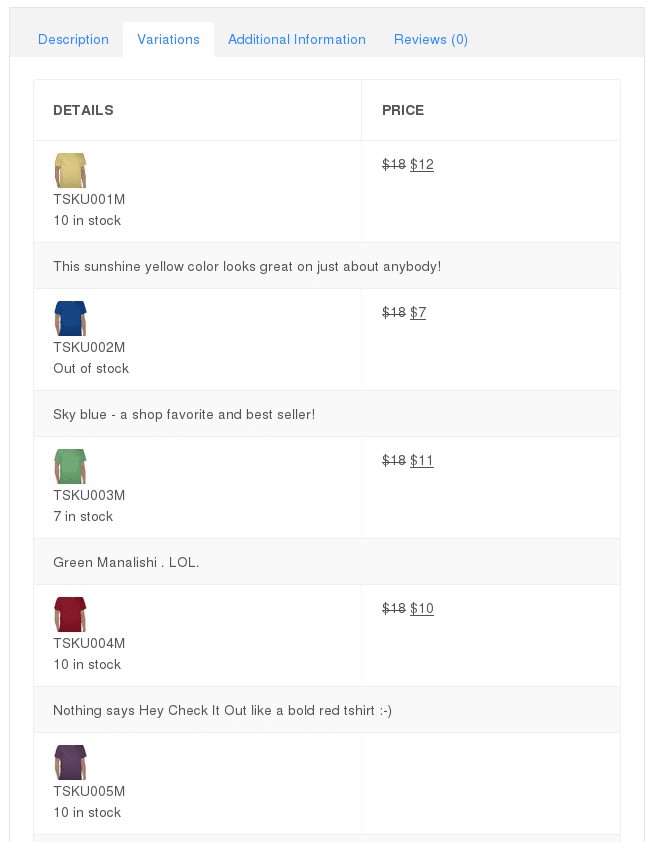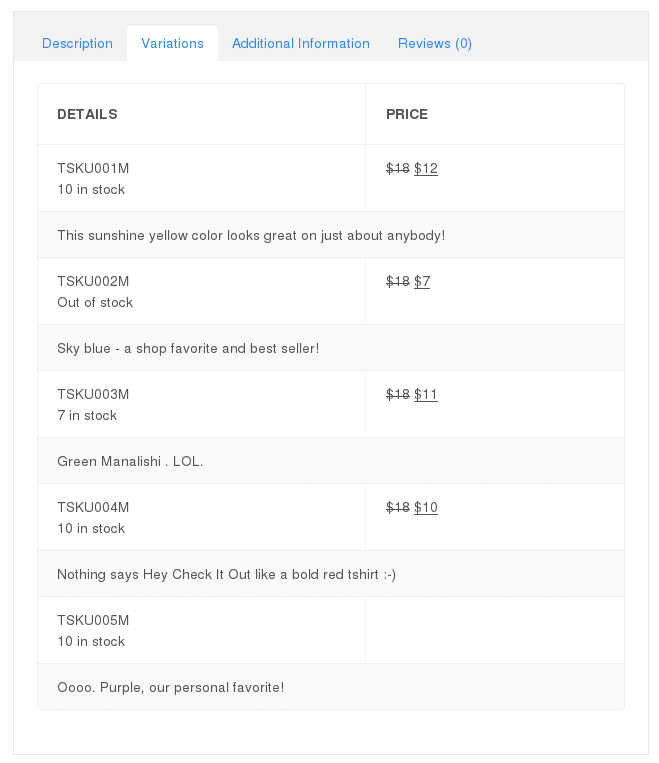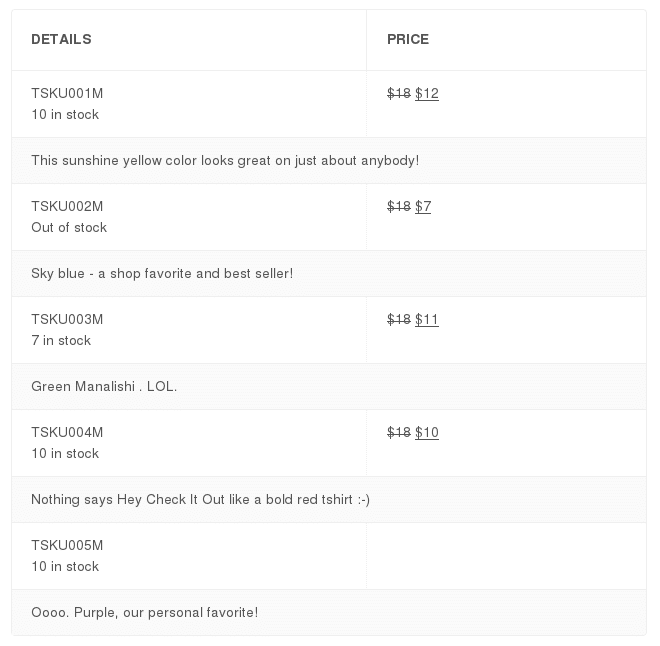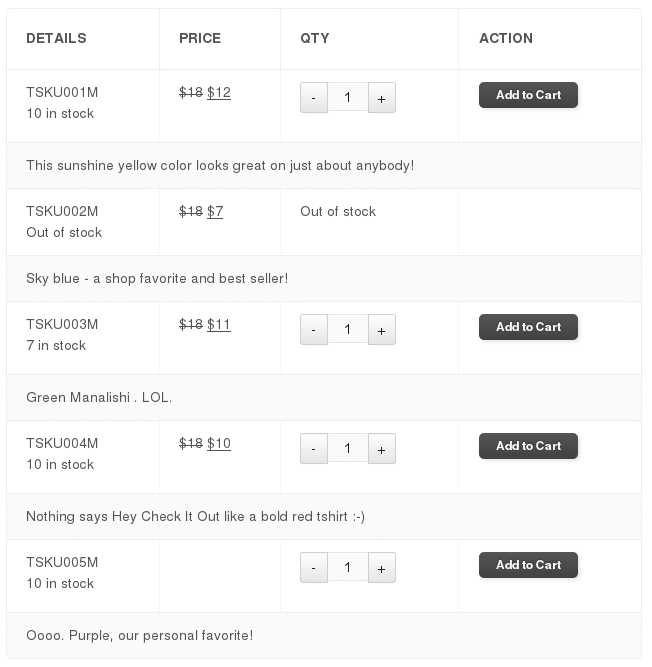
Want to display product variations in a table?
WooCommerce Variations Table lets you display a list of all your variations in an easy to read table format. You have a tremendous amount of control over what data is displayed in the table, and you can custom the table layout template file to meet your exact needs.
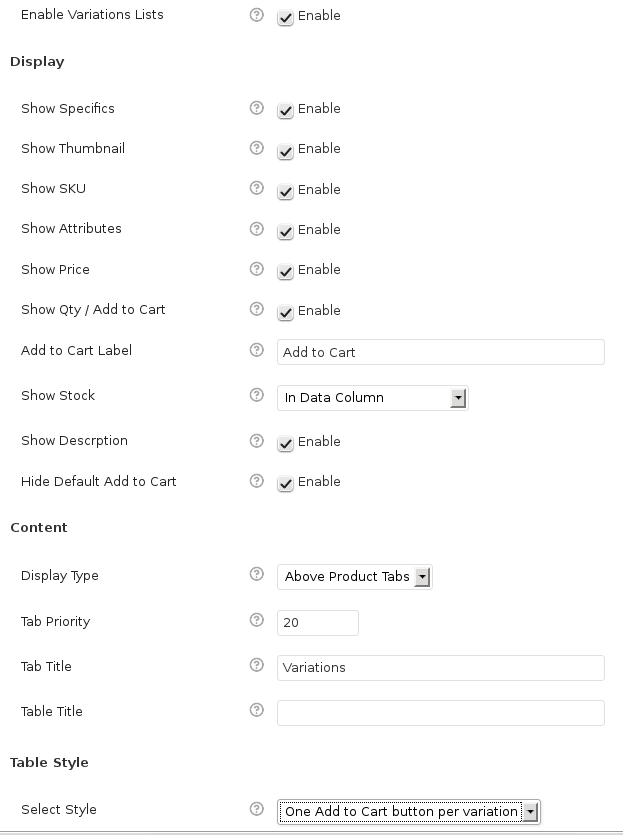
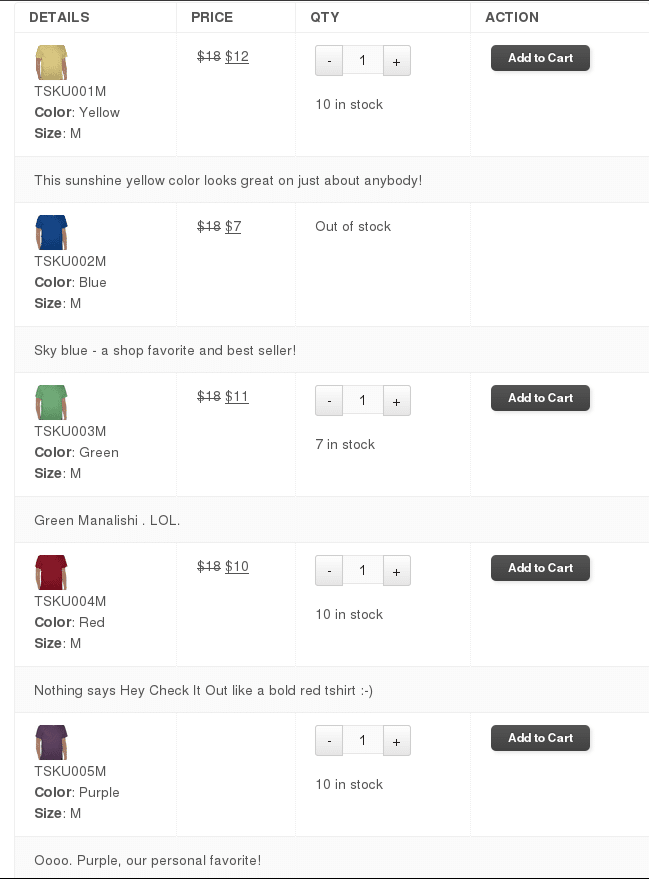
Features include the ability to turn on or off the display of thumbnail images, SKU numbers, stock levels, attributes, quantity selector, add to cart button, and more. You can also hide the default “add to cart” form on a product’s page and instead rely on the table’s “add to cart” functionality, and you can change the “add to cart” button text label to anything you like.
Display your variations table in a variety of positions on the page, including below the default “add to cart” form area, above the product’s data tabs ( where the description etc are typically displayed ), below the tabs, or inside a tab of its own where you have control over the tab label text through the plugin’s setting page. Or use a shortcode to insert the table into your product page.
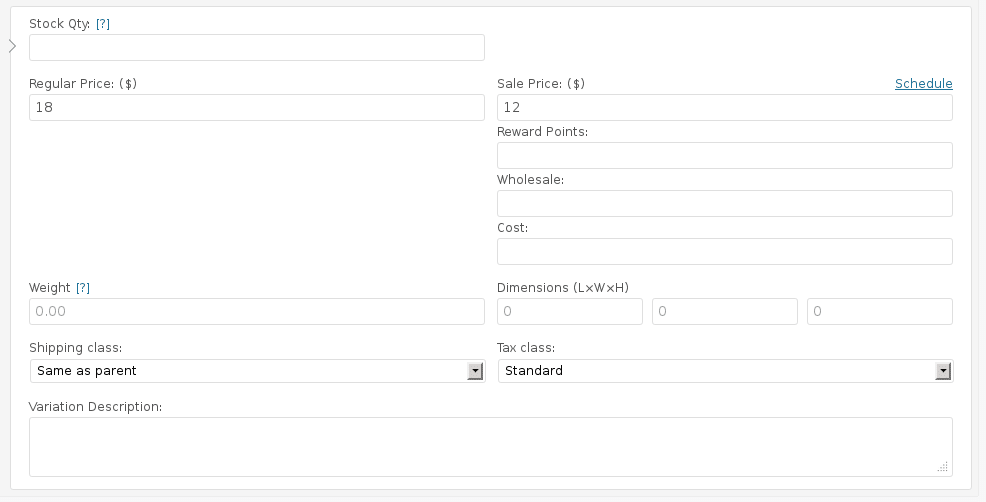
Plus, this plugin adds a new “description” feature to variable products. So you can write a unique description for for each variation of a product and have that description appear in your variations table.
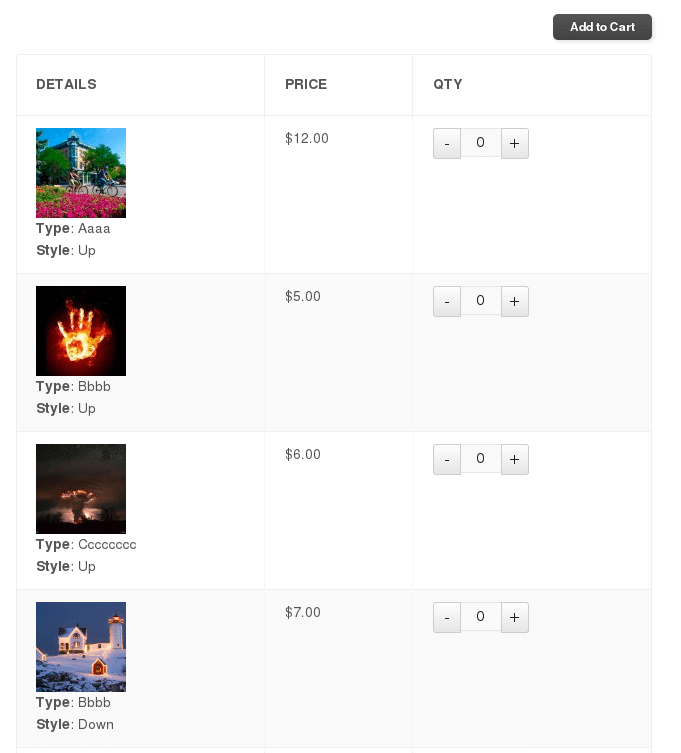
For table style, you can select between two different table layout styles. The first style places a quantity selector and Add to Cart button beside each variation, and the shopper selects a quantity and clicks the button for each variation they want to buy. The second style places a quantity selector besides each variation but only a single Add to Cart button for the entire table, and the shopper selects quantities for each variation they want to buy and then clicks the button to add them all to cart at the same time.
And, you can exclude specific product categories if you don’t want variable products in those categories to display the variations table.
See the screenshots (tab near the top of this page) to get an idea of what the settings look like and what the variations table looks like in different layouts depending on which features are enabled. Keep in mind that the screenshots only show a sample of the possibilities, other display layouts are possible by configuring the plugin settings, or by customizing the variations table template file.
Have questions? Call us! Or use the Contact form to send us a message.
* REQUIRES WooCommerce 4.0 or newer