How to Take Phone Orders in WooCommerce
WooCommerce can already create orders by hand. The question is whether its built-in screen fits the way you take these orders, or whether you need something built for live calls, counter sales and in-person orders at events.
Disclosure: we’re IgniteWoo, and we make and sell the Phone Orders & Manual Orders plugin for WooCommerce. Below we cover what WooCommerce does on its own, when that’s enough, and where our plugin fits.
Orders that don’t come through your checkout
Among the stores we see taking orders this way, three types come up:
- a wholesaler or B2B seller who takes most orders by phone;
- a store selling at trade shows, conventions, meetings or other events, where customers order in person;
- a store that only takes orders by phone or face to face.
Some stores are a mix: online checkout for most customers, plus phone, email, counter or event orders that staff enter for them. Those staff-entered orders are what we mean by manual orders in WooCommerce, and they’re the subject of this article.
What WooCommerce’s built-in Add order screen does
Here is how WooCommerce’s own documentation describes creating manual orders:
- Who can do it: someone signed in to the WordPress admin area as an Administrator or Shop Manager opens WooCommerce > Orders > Add order. Customers can’t create manual orders.
- Customer: pick a registered customer, or leave it empty for a guest order.
- Products: “Add item(s)” opens a product search. Out-of-stock and backorder items can be selected.
- Shipping: you add a shipping line by hand with a name, method and cost. The documentation doesn’t say rates are calculated for you.
- Tax, coupons and fees: you can add a tax rate or recalculate taxes from your settings and the address, apply coupons (only to unpaid orders) and add fixed or percentage fees.
- Payment: WooCommerce suggests setting the order to “Pending payment” and using “Send order details to customer,” which emails a link to the order payment page. Registered customers log in to pay; guests may be asked to verify their billing email. The documentation doesn’t describe staff entering card details or charging a card themselves.
When the built-in screen is enough
Based on that, you may not need anything extra if most of these are true:
- you enter manual orders occasionally, not as a daily routine;
- the people entering them already have Administrator or Shop Manager accounts, and you’re comfortable with that;
- customers can pay later from an emailed link rather than during the call or at the counter;
- you know the shipping cost already, charge a flat rate, or are happy to work it out and type it in.
If that describes your store, start with the built-in screen.
Where it gets hard on a live call or at a counter
The gaps show when the customer is waiting for you:
- Staff need admin access. Anyone who takes orders needs an Administrator or Shop Manager login to the WordPress admin area. That can be more access than you want to give someone answering the phone or working an event table.
- Payment happens later. With an emailed payment link, the customer has to open it, log in (guests may instead be asked to verify their email), and pay. Until they do, the order sits unpaid. At a convention or meeting, the customer may already have walked away.
- Shipping is typed in by hand. If your rates depend on weight, destination or carrier, someone has to look them up while the customer waits.
From call to placed order: taking a phone order in WooCommerce with Phone Orders & Manual Orders
Our plugin puts a manual order screen on a normal page of your site, outside the WordPress admin area. You create the page by adding the plugin’s shortcode to a new WordPress page, then choose which specific users or user roles can use it. Staff with access sign in to your site and take orders on that page, without admin access.
In the plugin’s settings seen below, you choose which users or user roles can use the order page.

Below you can see the Phone Orders & Manual Orders order page, on a page of the store’s site rather than in the WordPress admin area.
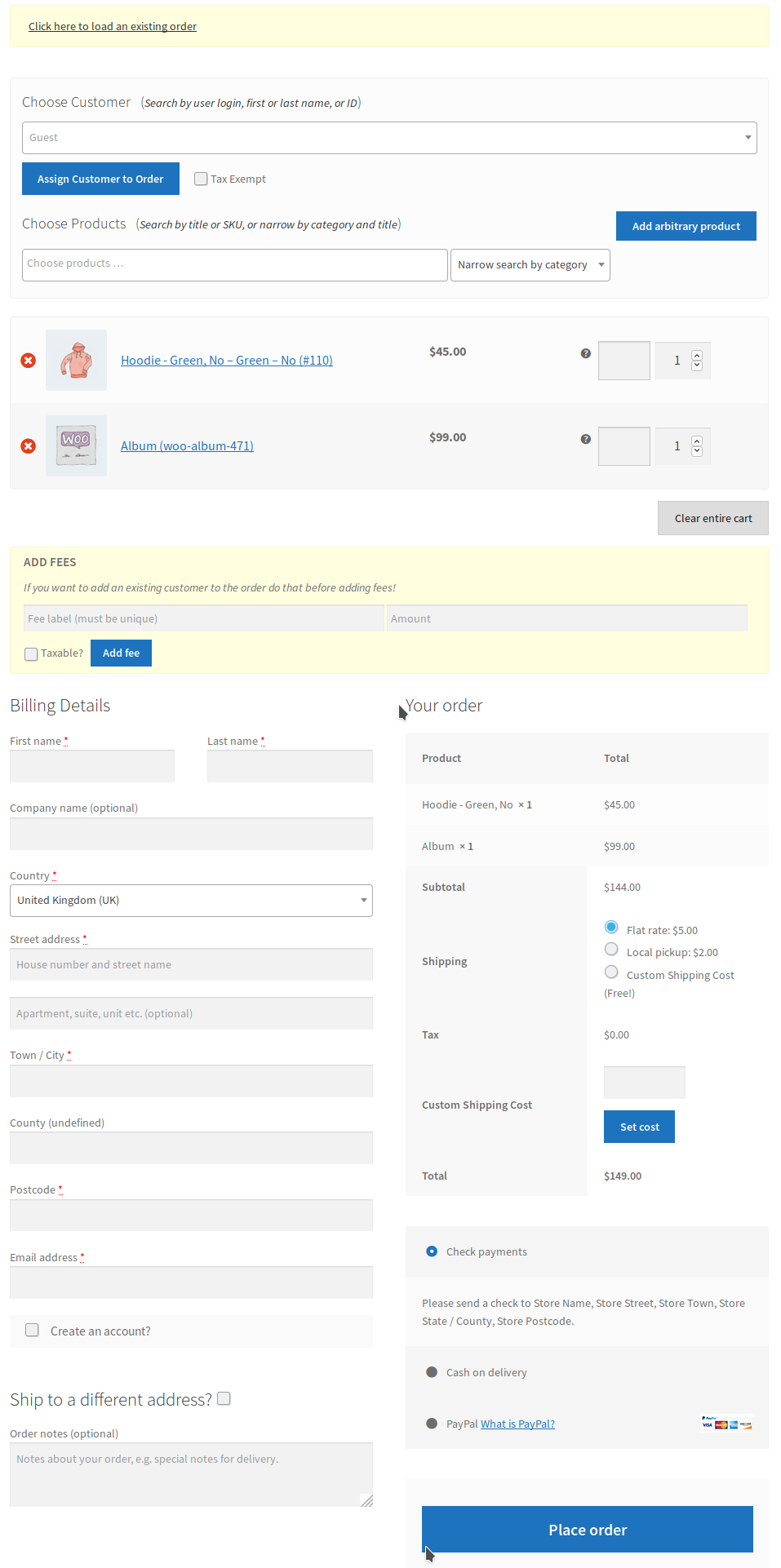
A typical order on that page goes like this:
- Find the products. Search by product name or SKU and add items to the order.
- Choose the customer. Select an existing customer, add a new one, or place a guest order. You can also create an account for the customer when the order is placed.
- Pick shipping. The page shows live rates from your store’s shipping methods, the same way your checkout does. If you enable it, the plugin’s own “Custom shipping cost” method lets you set a shipping price for that order. It appears only on the manual order page, not at public checkout.
- Take payment. Select a payment method and enter the payment details. The payment methods enabled for your public checkout are available here too. The plugin also includes its own methods (paid in person, hold order and invoice payment), which appear only on the manual order page when enabled.
- Place the order.
The demo video shows the order page in use:
The demo doesn’t show all possible features in action.
Repeat, wholesale and event orders
These features help with orders that repeat or need special handling:
- Reorders: load an existing order as a template for a new one, instead of rebuilding it item by item.
- Interrupted calls: put an order on hold and come back to it later.
- Deals and extras: apply coupons, and add fees with any label and amount.
- Price changes on the spot (optional): adjust product prices for most standard product types, for example when you agree a price with a trade customer on the call.
- Items you don’t list online (optional): add arbitrary products that aren’t in your catalog (screenshot below), such as an item sold only at an event or a one-off custom piece.
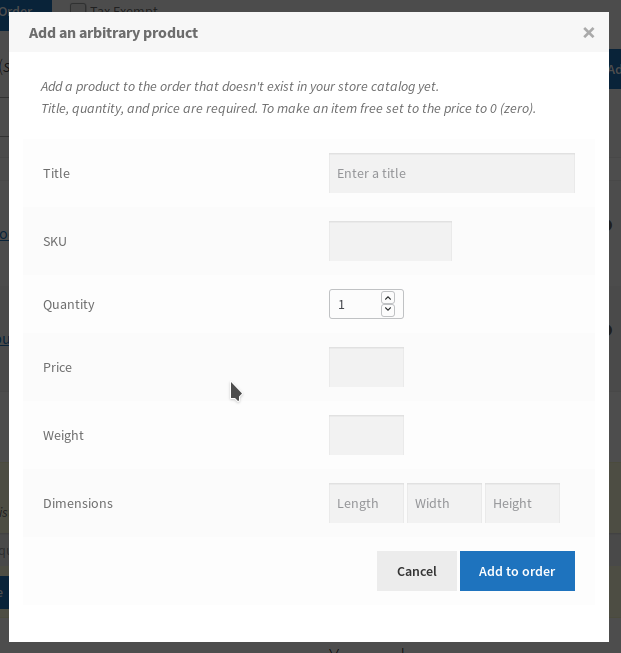
If you already use our Wholesale Pricing, Tiered Pricing or Dynamic Discounts plugins, Phone Orders & Manual Orders works with them.
Check fit before you buy
These are the requirements and limits to check against your store:
- WooCommerce version: WooCommerce 7.0 or newer is required. The plugin is compatible with the latest version of WooCommerce.
- HPOS and order numbering: high-performance order storage (HPOS) is supported, because orders taken on the order page become regular WooCommerce orders when they’re placed. The plugin also works with sequential order number plugins, including on HPOS stores running in compatibility mode.
- Product types: simple, variable, grouped, composite, bundled and subscription products are supported, along with many others.
- Payment methods: the order page uses the payment methods you already have enabled at checkout, plus the plugin’s own in-person, hold and invoice methods.
- Multiple shipping addresses: shipping one order to several addresses needs our separate Ship to Multiple Addresses extension.
- Licenses: each site needs its own license key.
Next step
If the built-in Add order screen covers how you take orders, keep using it. If your staff take phone, counter or event orders and need to quote live shipping and take payment while the customer is there, without admin logins, see the Phone Orders & Manual Orders product page for license options and pricing.
Already a customer? Setup instructions are in the plugin documentation; sign in to your account to see the full guide.
Newest Software
-
 Precious Metals Price Ticker for WooCommerce
-
 Split Orders with Multiple Addresses for WooCommerce
-
Separate Isolated Shipping for WooCommerce
-
Multiple Boxes Product Shipping for WooCommerce
-
PayPal Payouts Pro for WooCommerce
-
Login & Redirect To Previous Page for WooCommerce
-
Vendor Marketplace Pro - Pay to Post for WooCommerce







Plugin Categories
- Auctions
- Booking & Appointments
- Bulk Orders
- Cart Fees
- Checkout
- Contact
- Coupons
- Discounts
- Donations
- Drop Shipping
- Emails
- Enquire
- Events & Tickets
- Gifts
- Invoicing
- Marketing
- Min Max Order Total
- Min Max Product Quantities
- Miscellaneous
- Order Email Notifications
- Orders
- Password Protected
- Payments
- Pre-order
- Precious Metals
- Pricing
- Private Store
- Product Fees
- Product Search
- Shipping
- Store Manager
- Tabs
- Terms and Conditions
- Tickets & Ticketing
- Tiered Pricing
- Uncategorized
- Vendor Marketplace
- Wholesale Orders
- WooCommerce Plugins